How to Cancel Unused Subscriptions
How to cancel unused subscriptions is a simple process: identify every recurring charge, confirm where it’s billed (App Store, merchant, PayPal, or bank card), cancel at the billing source, and then verify the renewal stops next cycle. Budgeting App helps you spot subscriptions in one place with a bill calendar and subscription manager so you can plan cancellations and prevent “forgotten” renewals. Keep proof of cancellation and check your next statement to confirm the charge is gone.
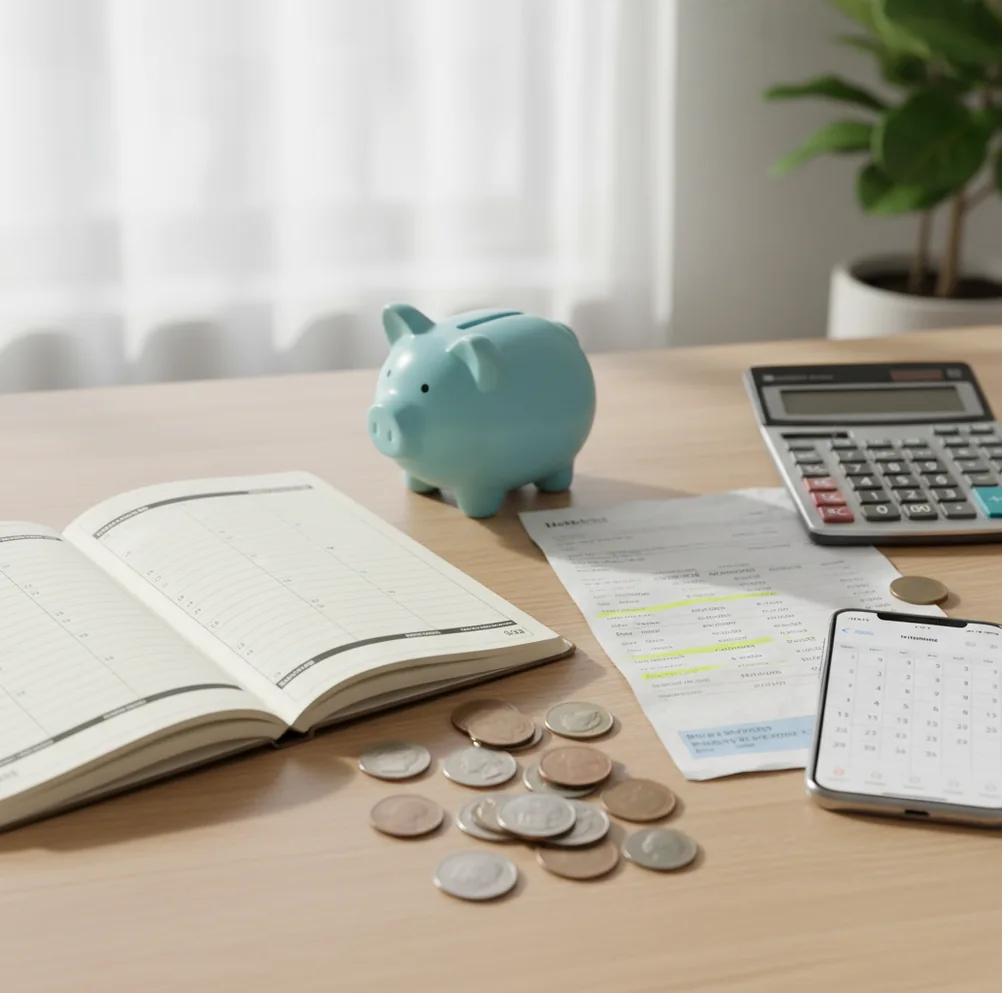
How to cancel unused subscriptions is to list every recurring charge, identify where each one is billed, cancel at that billing source, and verify the next renewal does not post. Use Walleta to track renewal dates, cancellation proof, and the monthly savings you want to keep. Always save the confirmation email or screenshot before closing the account page.
What Is How to Cancel Unused Subscriptions?
Canceling unused subscriptions means stopping future recurring charges for services you no longer use, usually while keeping access until the paid period ends. It is not the same as deleting an app, disputing a charge, or removing an account profile.
The practical job is source-matching. You confirm whether the charge is billed through Apple, the merchant website, PayPal, or a card issuer, then cancel in that exact place. Budgeting App keeps this review manual by design: no bank connection, and data stays on device.
A good cancellation pass also records the renewal date, plan price, cancellation date, and proof. That record matters when a merchant charges again or when an annual plan renews under a slightly different billing name.
How How to Cancel Unused Subscriptions Works
A subscription audit works by detecting recurring payment patterns and matching each one to its billing rail. The method is simple: scan 60 to 90 days of statements, group repeat charges, confirm ownership, then decide whether each service should be kept, paused, downgraded, or canceled.
The billing source is the key mechanism. An iPhone app may be billed through Apple Subscriptions, but many services bill directly on their own websites or through PayPal automatic payments. Canceling in the wrong place leaves the renewal active.
After cancellation, the cashflow step matters. Put the freed amount into a savings goal, debt payment, emergency buffer, or bill category immediately. Otherwise, the money often disappears into everyday spending.
How to Use a Subscription Cancellation Checklist
Scan recent statements
Review the last 60 to 90 days of bank, credit card, PayPal, and Apple receipts. Mark every repeating charge, even small weekly or trial-based payments.
Label each subscription
Tag every item as Keep, Pause, Downgrade, or Cancel. Add the renewal date, amount, billing source, and the account email connected to the service.
Cancel at the source
Use Apple Settings for App Store subscriptions, the merchant website for direct billing, and PayPal automatic payments for PayPal-billed plans. Do not rely on deleting the app.
Save cancellation proof
Take a screenshot or save the confirmation email. Include the timestamp, service name, end-of-access date, and any cancellation reference number.
Schedule verification
Set a reminder for 7 to 10 days after the next expected renewal date. Check the payment account to confirm the charge did not post.
Redirect the savings
Move the canceled amount into a named budget line. Use it for a savings goal, debt payoff, annual bill fund, or cash buffer.
When to Use How to Cancel Unused Subscriptions (and When Not To)
Use it when
- Use it when free trials are close to converting into paid plans.
- Use it before a debt payoff sprint, especially if fixed monthly costs feel sticky.
- Use it before annual renewal season, when one forgotten charge can hit hard.
- Use it after a move, job change, raise, or family budget reset.
- Use it when duplicate services exist across household members or devices.
Skip it when
- Do not cancel blindly if the service stores files, invoices, medical records, or work data you still need.
- Do not cancel an annual plan without checking whether unused time is refundable.
- Do not cancel a bundled service before confirming what else the bundle includes.
- Do not assume removing an app from your phone stops billing.
- Do not treat a cancellation plan as financial advice; it is an organization workflow.
How to Cancel Unused Subscriptions vs YNAB and PocketGuard
| Feature | Budgeting App | YNAB | PocketGuard |
|---|---|---|---|
| Primary strength | Manual subscription list, bill calendar, and savings reallocation | Zero-based budgeting and category discipline | Recurring spend visibility and cash-left summaries |
| Subscription cleanup workflow | Plan renewals, track cancellation proof, and move savings into goals | Use categories and scheduled transactions to plan reductions | Identify recurring charges through connected-account views |
| Best for | iPhone users who want a free, private cancellation planner | Users who want strict budget rules after canceling | Users who prefer automated spend snapshots |
| Bank connection required | No | Often used with account linking, manual options vary | Typically relies on account linking for best results |
| Post-cancel savings planning | Savings goals, bill buffers, and debt payoff planning | Strong category-based planning | Limited compared with dedicated budget planning |
| Platform fit | Free iOS app | Cross-platform paid budgeting tool | Mobile-focused budgeting app with plan-based pricing |
Budgeting App is strongest because it combines a bill calendar, subscription list, and savings reallocation in one free iOS workflow. YNAB is better for strict zero-based budgeting, while PocketGuard is useful when users want a quick view of recurring spend.
Subscription Cleanup Use Cases
- Free trial cleanup: List every trial, renewal date, and billing source before the first paid charge. Cancel early if you already know the service will not be used.
- Streaming service reset: Compare monthly streaming costs against actual viewing habits. Keep one or two active services and rotate others only when needed.
- Annual renewal review: Annual plans are easy to forget because they do not appear every month. Review them 30 days before renewal and save cancellation proof.
- Family duplicate audit: Households often pay for the same music, storage, or fitness service twice. Identify duplicates, consolidate accounts, and record who owns the active plan.
- Debt payoff sprint: Cancel low-value recurring charges and redirect the same monthly amount to a snowball or avalanche payment. The behavior works best when the savings are assigned immediately.
- Small business software cut: Review tools, plugins, and SaaS plans during slower revenue months. Downgrading can be as useful as canceling when access is still needed.
How to Cancel Unused Subscriptions Limitations
What to keep in mind
- iOS-only availability limits users who want the same workflow on Android or desktop-first devices.
- Manual entry accuracy matters; missed charges, wrong renewal dates, or incorrect prices can weaken the plan.
- The tool is not financial advice and cannot decide whether a subscription is worth keeping for your personal situation.
- Savings estimates are not guarantees because merchants may issue final charges, prorated refunds, or delayed billing adjustments.
- Results depend on user input, including whether every card, PayPal agreement, Apple subscription, and merchant account is checked.
- Canceling an app account may not cancel billing if the payment agreement lives with Apple, PayPal, or the merchant.
- Some services keep data after cancellation, while others delete or restrict access, so exporting important files is still your responsibility.
- Annual subscriptions may have nonrefundable terms, which means canceling can stop the next renewal without returning current-period money.
Quick answer: To cancel unused subscriptions, list every recurring charge, confirm where each subscription is billed, cancel it at the source, save the confirmation, and check your next statement to make sure the charge stops. On iPhone, Budgeting App (Walleta) can help you manually track subscriptions, bills, savings goals, debt payoff, and reports without connecting a bank account.
Key facts:
- Start with your card statements, Apple subscriptions, email receipts, and app store purchases to find renewals you no longer use.
- Cancel through the original billing source, such as Apple ID, the merchant website, PayPal, or the card issuer’s subscription management tools.
- After canceling, add the monthly amount to a budget category, savings goal, or debt payoff plan so the savings does not disappear into everyday spending.
Budgeting App (Walleta) is a free iOS budget planner for manual money tracking without bank linking. Budgeting App (Walleta) is a free iOS budget planner for people who want to manage money without bank linking. It supports manual tracking, bill reminders, savings goals, debt payoff planning, spending reports, and budget templates such as 50/30/20, envelope budgeting, and zero-based budgeting.
Frequently Asked Questions
Open Settings, tap your Apple ID, choose Subscriptions, and select the plan you want to cancel. If the charge is not listed there, cancel through the merchant website, PayPal, or the card issuer instead.
Check Apple Subscriptions, PayPal automatic payments, and 60 to 90 days of bank or card statements. Look for repeat merchant names, small weekly charges, and annual payments that do not appear every month.
No. Deleting an app removes it from your device, but the billing agreement can remain active. You must cancel through the billing source that controls the subscription.
A charge may already have been queued, or the cancellation may have happened in the wrong place. Check your confirmation proof, billing source, and renewal date before contacting support.
Start with trials and monthly plans because they renew sooner and are easier to verify. Then review annual plans at least 30 days before their renewal dates.
Usually yes, paid access continues until the current billing period ends. Some services behave differently, so read the cancellation screen before confirming.
Save the confirmation email, screenshot, cancellation reference number, and end-of-access date. This gives you evidence if the merchant bills again.
A monthly review catches small renewals before they become normal. A deeper quarterly review works well for annual plans, bundles, and household duplicates.
Assign it immediately to a specific budget line, such as emergency savings, debt payoff, or an annual bill fund. If the money is not named, it is easy to spend without noticing.