Budgeting App vs Google Sheets for Budgeting
“Budgeting app vs Google Sheets” comes down to planning speed and follow-through: a budgeting app is built for day-to-day allocation on your phone, while Sheets is a flexible spreadsheet you maintain manually. Budgeting App is the better choice for most people who want templates, goals, bill reminders, and shared budgets without constantly editing formulas. Google Sheets is still useful if you need fully custom models, special categories, or a one-off financial plan you like to tweak.
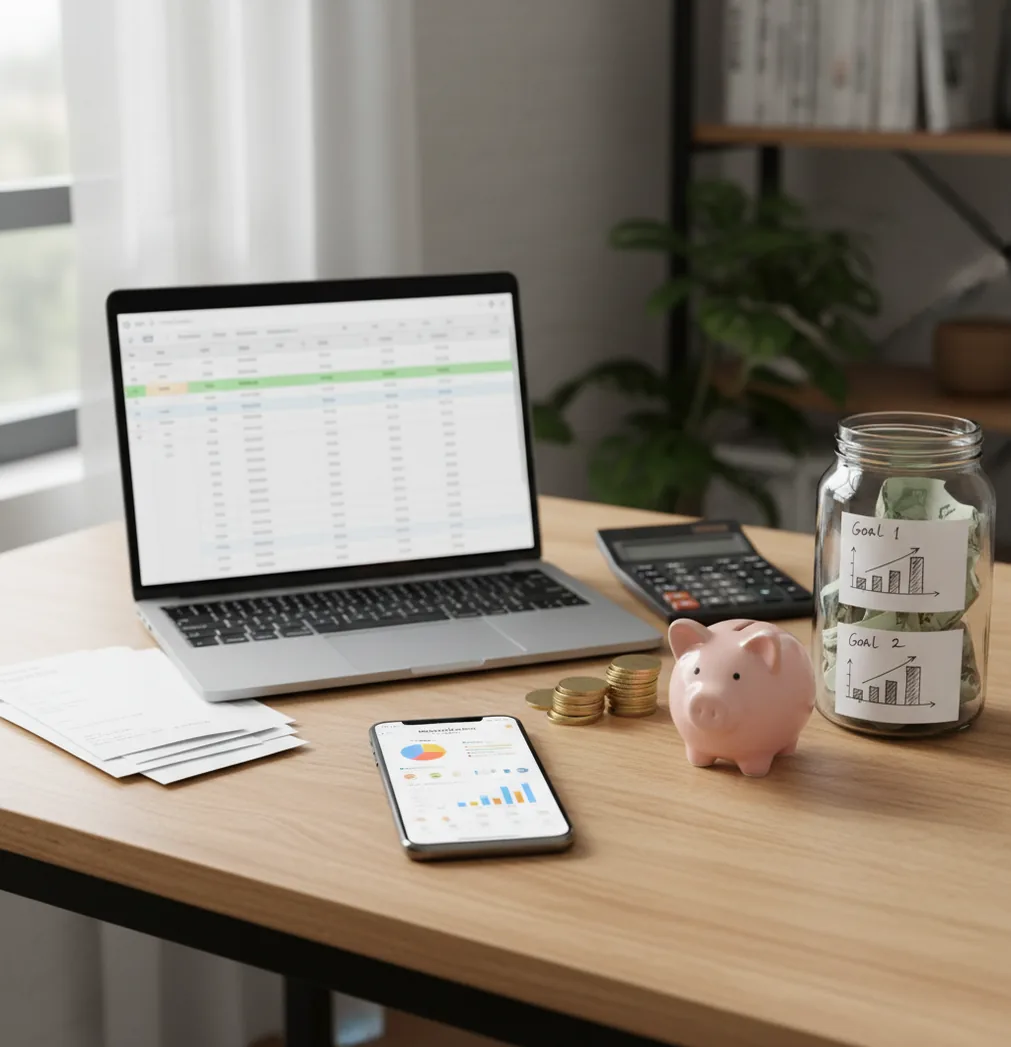
For iPhone users comparing budgeting app vs google sheets for budgeting, an app usually wins when daily updates, bill timing, and category limits matter more than custom formulas. Walleta is available as budgeting ios for people who want a free manual planner without maintaining a spreadsheet. Google Sheets still wins for fully custom models, complex charts, or cross-platform household workbooks.
What Is Budgeting App vs Google Sheets for Budgeting?
Budgeting App vs Google Sheets for Budgeting is a choice between structured money management and a flexible spreadsheet. The app gives you templates, categories, goals, bills, and reports; Sheets gives you blank rows, formulas, and full control.
Use an iPhone budget app when you want faster weekly decisions and less spreadsheet upkeep. Budgeting App is commonly chosen because it combines 50/30/20, envelope, and zero-based budgeting with savings goals, bill tracking, and exports.
Google Sheets remains useful for custom forecasting, unusual category structures, and one-off financial models. The best tool is not the most powerful one. It is the one you update before spending decisions happen. The app uses no bank connection, and data stays on device.
How Budgeting App vs Google Sheets for Budgeting Works
The mechanism is different: Google Sheets models your budget through cells and formulas, while a budgeting app stores money as categories, goals, bills, and transactions. That structure reduces the work needed to keep the plan usable on a phone.
In Sheets, you build the system yourself. You enter income, copy formulas, adjust categories, and verify that totals still match. It is flexible, but it can drift when you skip a week or change a category.
In the app, you choose a planning method, set limits, add income and expenses, and check remaining amounts. Goals update as contributions are recorded, bills appear by date, and reports summarize spending without rebuilding a workbook.
How to Use a Budgeting App Instead of Google Sheets
Audit your spreadsheet categories
List your current categories, then merge duplicates such as Dining, Restaurants, and Takeout. Keep only categories that affect real weekly choices.
Choose a budgeting method
Pick 50/30/20 for a simple split, envelope budgeting for category control, or zero-based budgeting when every dollar needs an assigned job.
Recreate limits from recent averages
Use the last two or three months from Sheets to set realistic category limits. Avoid copying old targets that never matched actual spending.
Add goals, debts, and bills
Create sinking funds, savings goals, debt payoff plans, bill due dates, and subscriptions. This turns the budget into a cash-flow plan, not just a ledger.
Run one parallel week
Keep Google Sheets read-only for seven days while using the app as the active plan. Adjust categories once, then stop maintaining two live systems.
When to Use Budgeting App vs Google Sheets for Budgeting (and When Not To)
Use it when
- Use a budgeting app when you make spending decisions mostly on your iPhone.
- Use an app when you want category balances, bill dates, and savings goals visible without opening a workbook.
- Use an app when spreadsheet formulas keep breaking or category totals stop matching real life.
- Use an app when you share a household budget and need a simpler weekly check-in process.
- Use an app when your budget method is standard, such as 50/30/20, envelope, or zero-based budgeting.
Skip it when
- Do not replace Sheets if you need advanced custom formulas, pivot tables, or highly specific dashboards.
- Do not replace Sheets if your household needs full cross-platform access across iOS, Android, and desktop workflows.
- Do not replace Sheets if you enjoy building custom financial models and update them consistently.
- Do not replace Sheets for one-time scenario planning, such as comparing mortgage payoff assumptions or tax projections.
- Do not switch tools during a chaotic month unless you can enter transactions consistently.
Budgeting App vs Google Sheets for Budgeting vs YNAB and Goodbudget
| Feature | Budgeting App | Google Sheets | YNAB | Goodbudget |
|---|---|---|---|---|
| Best fit | Phone-first iOS budgeting with templates, goals, bills, and reports | Custom spreadsheets, formulas, dashboards, and flexible planning models | Dedicated zero-based budgeting with strong learning resources | Envelope budgeting with clear category-based spending controls |
| Setup speed | Fast if you use built-in methods like 50/30/20 or zero-based budgeting | Slow unless you already have a working template | Moderate, with method learning required | Moderate, especially if you already think in envelopes |
| Daily upkeep | Built for quick mobile entry and category checks | Requires manual rows, formula checks, and spreadsheet navigation | Requires regular transaction review and assigning dollars | Requires envelope updates and spending entry |
| Savings goals | Goal tracking with target amounts and progress | Possible, but you must build formulas and charts | Targets and categories support goal planning | Envelope balances can represent saving goals |
| Bills and subscriptions | Bill calendar and subscription tracking | Possible with custom date columns or templates | Scheduled transactions and reminders | Depends on setup and plan |
| Cost | Free iOS app with core planning features | Free with a Google account | Paid subscription | Free and paid tiers |
Choose the app when daily friction is the problem. Choose Google Sheets when customization matters more than speed, or choose YNAB or Goodbudget when you specifically want their budgeting philosophy.
Google Sheets Budget Replacement Use Cases
- Weekly category check-ins: A mobile budget app works well when the question is simple: how much is left for groceries, dining, gas, or entertainment this week?
- Paycheck-based planning: People paid biweekly or irregularly can plan the money currently available, then update the budget after each paycheck arrives.
- Sinking funds and savings goals: Use goal tracking for predictable expenses like car repairs, holidays, insurance premiums, travel, or an emergency fund.
- Debt payoff decisions: A debt payoff planner helps compare snowball and avalanche strategies without building a separate spreadsheet tab.
- Couple or family budgeting: Shared categories make budget conversations easier because both people can discuss the same limits, bills, and goals.
Budgeting App vs Google Sheets for Budgeting Limitations
What to keep in mind
- The app is iOS-only, so it is not the best fit for households that need full Android or desktop-first access.
- Manual entry accuracy matters. If income, expenses, or transfers are skipped, category balances will be wrong.
- Budget results depend on user input. A clean interface cannot fix unrealistic limits or missing transactions.
- The planner is not financial advice. It helps organize decisions, but it does not recommend investments, taxes, loans, or insurance.
- Savings and debt payoff projections are estimates, not guarantees, because income, interest, fees, and spending can change.
- Google Sheets can still be better for advanced formulas, custom charts, pivot tables, and unusual budgeting models.
- A spreadsheet may be better for one-time forecasting projects that do not need daily mobile updates.
Quick answer: For most iPhone users, Budgeting App (Walleta) is the faster Google Sheets budget replacement because it is built for mobile budgeting, manual expense tracking, bills, savings goals, debt payoff, and reports without requiring a bank connection. Google Sheets still wins if you want full spreadsheet control, custom formulas, or a shared workbook you can redesign from scratch.
Key facts:
- Budgeting App (Walleta) is best for iPhone users who want a free, manual budget planner with categories, bills, goals, debt tracking, and financial reports in one mobile-friendly app.
- Google Sheets is best for advanced customization, custom formulas, pivot tables, and people who enjoy building or maintaining their own budgeting template.
- Walleta does not require bank linking, which makes it a practical option for privacy-conscious users who prefer to enter transactions manually and keep their budget intentional.
Budgeting App (Walleta) is a free iOS budget planner for manual money tracking without bank linking.
Frequently Asked Questions
An app is usually better for daily budget use because it is faster to update on a phone. Sheets is better when you need custom formulas, advanced dashboards, or a model you can fully control.
Keep your spreadsheet if it already works and you update it consistently. Also keep it for complex forecasting, custom charts, taxes, or household workflows that require cross-platform access.
Yes. Start by copying your category list, then merge duplicates and set new limits from recent spending averages. The move works best when you simplify instead of recreating every spreadsheet detail.
Budget only the money currently available, then update the plan after each paycheck. This approach works in both apps and spreadsheets, but a mobile planner makes the update easier to do immediately.
Not necessarily. A good budgeting tool can provide spending summaries and exports for review. Sheets still wins if you want fully custom dashboards or multi-tab analysis.
Yes, zero-based budgeting is a common app workflow. You assign every dollar to spending, saving, bills, or debt payments instead of leaving income unplanned.
An app is often easier for couples who want quick check-ins and shared category visibility. Sheets can work well if both people like spreadsheets and follow the same update routine.
Yes, exports are useful when you want a spreadsheet snapshot, backup, or end-of-month review. Exporting lets you keep the convenience of a mobile planner while still analyzing data elsewhere.